
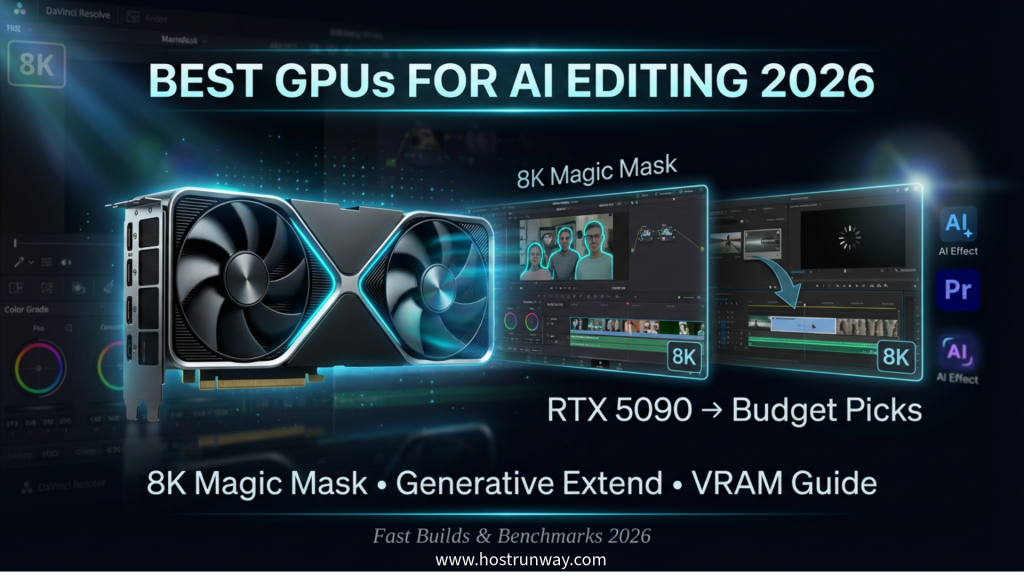

In 2026, AI has totally changed video editing. Magic Mask in DaVinci Resolve is currently capable of tracking 100 plus faces in real time. In Premiere Pro, it is possible to fill gaps in real time with the help of Generative Extend. And 8K schedules no longer belong to Hollywood studios. You are in a very right place when you are looking to get the best GPUs for DaVinci Resolve 2026.
The editing world is transformed quickly. These AI functionalities seemed experimental one year back. They are now incorporated into the daily processes of work. They are relied on by the freelancers, agencies, and even studios so as to provide work faster and better.
The 2026 AI editing shift is characterized by three major transformations. The new Neural Engine of DaVinci Resolve detects scenes and tracks objects on accelerated speeds never before witnessed. Generative Extend and AI-based color matching are now fully enabled by Adobe Firefly, which is integrated into Premiere Pro. And 8K timelines are already gaining acceptance among serious editors, and require a much higher amount of GPU power than 4K ever required.
The incorrect GPU does not make it a bit slower. It collapses your project, gets dropped frames and murders deadlines. Your editing workstation has just become a whole new brain and it is your GPU.
This is all you need; ranked GPUs, a vRAM cheat sheet, benchmark figures, and pre-built systems. Indie movie maker or complete post-production workshop there is a build here.
We also cover the best GPU for Premiere Pro AI 2026 for editors inside Adobe’s ecosystem. Plus, you will see how the RTX 5090 DaVinci Resolve combination performs in real tests.
Let’s find the perfect GPU for your AI-powered editing workflow.
Also Read : GPUs for Scientific Simulations: Accelerating Physics and Biology Research in 2026
Why GPU Choice Matters More Than Ever for AI Editing in 2026
The gold standard was the RTX 4090 one year ago. By 2026, it is era-bound to do serious work on AI.
It is not a small increase in spec between 2025 and 2026. Combined, CUDA 12.8 and NVFP4 optimizations can run AI effects in three times the time. It is something that you can quantify at your work station on a daily basis.
Here is what happens when you run a modern 8K timeline:
- Magic mask has the ability to detect 100+ faces in real time on each frame.
- Auto Reframe is a composition adjustment which can be done automatically.
- Neural Filters use both color and detail at the same time.
- Generative Extend Plays on timeline with no render queue.
The entire running of these requires massive GPU memory. The bottleneck of a mid-range card of 2024 is always continuous. You have dropped frames, sluggish previews and hours long export times.
Quick benchmark: The RTX 5090 is three times faster than the RTX 4090 of last year in 8K Magic Mask. That is time saved on a per project, per client, each week.
The performance disparity is indisputable in the case of editors that operate according to the demands of davinci resolve gpu 2026. You require a card to support current-generation workloads of AI. The past generation is no longer cutting it.
The incorrect graphic card does not slow you down. It is expensive to your clients and revenue.
Also Read : GPU Dedicated Server vs Cloud: Which is Best for Your AI and Compute Needs in 2026?
What Makes a GPU Perfect for DaVinci Resolve & Premiere Pro AI?
Not every GPU works well in AI editing. There are five factors that distinguish a great card and an average one.
1. VRAM: The Number One Factor for 8K AI
Your footage, AI models, and effects data are stored in the memory of VRAM. For 8K AI work, 16 GB is the minimum. Ideally, 24 GB or more. VRAM insufficiency leads to stuttering and crashing as well as corrupted previews. When purchasing, be sure to get more than you believe you will require at this moment.
2. Tensor Cores and NVFP4 Performance
Tensor Cores are processors that are designed inside NVIDIA GPUs to perform AI calculations. NVFP4 precision included in the RTX 50-series reduced AI processing time by up to 55 percent and consumed less memory. The number of Tensor Cores is just as important as the actual clock speed of any premiere pro ai gpu workload.
3. CUDA Cores and Driver Optimization
CUDA Cores are responsible for general compute work throughout your timeline. The more cores the higher the speed of rendering and real time playback. DaVinci Resolve as well as Premiere Pro are also fully optimized to CUDA. It is not going to be negotiable to keep your drivers updated in 2026.
4. 9th-Gen NVENC Encoder for Export
The new NVENC encoder of the cards in the RTX 50-series can export H.265, AV1, and ProRes at a speed that is beyond the capabilities of the previous generation. In the case of studios that export many deliverables daily, this feature is sufficient to upgrade.
5. Power Efficiency and Multi-GPU Support
Cards based on RTX 50-series are more efficient in terms of performance per watt than 40-series cards. In need of even more, DaVinci Resolve features gun multi-GPU configurations, doubling the AI processing power without a complete apparatus upgrade.
Also Read : RTX 5090 vs RX 9070 XT vs Arc B580: Best Gaming GPU Comparison 2026
2026 VRAM & Performance Cheat Sheet for AI Features
Know what your GPU requires of any AI feature before you purchase anything. Overbuying wastes money. Underbuying implies incessant bottlenecks.
The following table provides you with precise VRAM requirements of every key AI feature in DaVinci Resolve and Premiere Pro up until 2026. Make it your shopping checklist.
The first thing to know is that RTX 50-series cards have NVFP4 precision processing. This has reduced potential VRAM needs by as much as 55 percent of its older hardware equivalents, without compromising on real time playback quality. The 16 GB RTX 5080 has workloads that require 32GB on a 2024 card. And that is savings to those with middle sized incomes.
To editors who are editing vram for davinci resolve ai, the column that we recommend to you is your actual target. The bottom is the minimum of the basic functionality. Where daily work lives are smooth and reliable, are recommended.
| AI Feature | Resolution | Minimum VRAM | Recommended VRAM | Recommended GPU |
| Magic Mask (Resolve) | 8K | 16 GB | 32 GB | RTX 5090 |
| Generative Extend (Premiere) | 4K | 12 GB | 24 GB | RTX 5080 |
| Face Refinement | 8K | 14 GB | 24 GB | RTX 5070 Ti |
| Neural Filters + Auto Reframe | 4K | 10 GB | 16 GB | RTX 5060 Ti 16GB |
| Full 8K Timeline + All AI | 8K | 20 GB | 32 GB+ | RTX 5090 or dual setup |
Note: RTX 50-series NVFP4 cuts VRAM needs by up to 55% while keeping real-time playback fully intact.
Running a single 4K AI feature? The RTX 5060 Ti 16GB works well. Powering 8K studio pipeline with all the AI tools on? It requires the RTX 5090 or dual-GPU. Otherwise, all the rest are intermediate depending on your working load per day.
Also Read : Best GPUs for Video Editing 2026: NVIDIA vs AMD – Full Comparison & Picks
Top 5 GPUs Ranked for DaVinci Resolve & Premiere Pro AI 2026
The top best GPUs for DaVinci Resolve 2026 in terms of the real-world AI editing performance. Each pick has benchmarks, prices and an intelligent tip on how to build it.
1. NVIDIA RTX 5090: The Undisputed King
March 2026 Street Price: $2,099
Specs:
- 32 GB GDDR7 VRAM
- 1,792 GB/s memory bandwidth
- 680 Tensor TFLOPs (NVFP4)
- 9th-gen NVENC encoder
Real Benchmark: 8K Magic Mask will take a 18 seconds time. The RTX 4090 required 54 seconds on the same task.
Pros:
- The fastest AI editing card in the market.
- Simultaneously handles all AI capabilities at 8K.
- Future-proof for 2027 workloads
- NVFP4 provides AI efficiency.
Cons:
- High price for solo editors
- Requires 1000W+ power supply
Who It Is Perfect For: High volume studios, professional colorists and editors who have businesses where speed of turnaround of the project is the income generating factor.
Smart Pairing Tip: AMD Ryzen 9 9950X + 128 GB DDR5 + Samsung 990 Pro 4 TB NVMe. The given build supports all 8K AI pipelines without any bottlenecks.
The RTX 5090 DaVinci Resolve pair is the best option to do serious work with the professionals in the year 2026. There is no other match to raw AI throughput.
2. NVIDIA RTX 5080: Best Value High-End
March 2026 Street Price: $1,049
Specs:
- 24 GB GDDR7 VRAM
- 960 GB/s memory bandwidth
- 380 Tensor TFLOPs (NVFP4)
- 9th-gen NVENC encoder
Real Benchmark: Generative Extend at 4K can run in real time and the 8K Magic mask takes 38 seconds.
Pros:
- Half the price of the RTX 5090 with 75% of its performance
- 24 GB handles most 8K AI tasks without strain
- Excellent for rtx 5080 premiere pro workflows
- Quieter and cooler under sustained load
Cons:
- Becomes strained a bit when running full 8K, with all AI tools active at the same time.
- Lack of support of dual-GPU configurations.
Who It Is Perfect For: Freelance editors, expanding agencies, and studios with occasional and 8K work that do 4K primary work.
Smart Pairing Tip: Intel Core Ultra 9 285K + 64 GB DDR5 + WD Black SN850X 2 TB. A balanced build around $2,800 total.
For the best GPU for Premiere Pro AI 2026 at a manageable price, the RTX 5080 delivers outstanding results.
3. NVIDIA RTX 5070 Ti: Sweet Mid-Range
March 2026 Street Price: $649
Specs:
- 24 GB GDDR7 VRAM
- 840 GB/s memory bandwidth
- 290 Tensor TFLOPs (NVFP4)
- 9th-gen NVENC encoder
Real Benchmark: 4K Neural Filters can work in real time. 8K Face Refinement is 55 seconds.
Pros:
- VRAM of 24 GB and cost in the middle range is very good.
- Supports all the 4K AI capabilities.
- Efficient at 285W TDP
Cons:
- Less fast than the RTX 5080 with heavy loads of 8K.
- No support of complete simultaneous AI workflows.
Who It Is Perfect For: Indie filmers, YouTube creators, and editors who need 4K and 8K work, but are not required to use it frequently.
Smart Pairing Tip: AMD Ryzen 7 9700X + 32 GB DDR5 + Seagate FireCuda 530 2 TB. Total build around $1,900.
4. NVIDIA RTX 5060 Ti 16GB: Budget Hero
March 2026 Street Price: $429
Specs:
- 16 GB GDDR7 VRAM
- 576 GB/s memory bandwidth
- 180 Tensor TFLOPs (NVFP4)
- 9th-gen NVENC encoder
Real Benchmark: 4K Auto Reframe and Neural Filters can run smoothly. The 8K Magic Mask can run at approximately 110 seconds.
Pros:
- Best budget card to use to edit AI in 2026.
- The 16GB VRAM is comfortable with 4K AI.
- Low power draw at 165W TDP
Cons:
- Fights with 8K and a number of AI features running simultaneously.
- Unsuitable to 8K studio output.
Who It Is Perfect For: Students, new freelancers, and editors working in 4K who want AI features without a premium price tag.
Smart Pairing Tip: Intel Core i7-14700K + 32 GB DDR5 + Crucial T705 1 TB NVMe. Total build under $1,300.
5. AMD RX 9070 XT: Value Alternative
March 2026 Street Price: $549
Specs:
- 16 GB GDDR6 VRAM
- 717 GB/s memory bandwidth
- RDNA 4 AI engine (no NVFP4)
- AV1 encoder support
Real Benchmark: 4K Premiere Pro AI features run acceptably. DaVinci Resolve Studio AI performance sits 30 to 40% behind the RTX 5070 Ti on equivalent tasks.
Pros:
- Strong raster rendering performance per dollar
- Good for mixed gaming and editing rigs
- AV1 encoding at a competitive price
Cons:
- ROCm support in Resolve works but is less optimized than CUDA
- Premiere Pro AI acceleration heavily favors NVIDIA
- No NVFP4 means higher VRAM usage per AI task
Who It Is Perfect For: Editors who also game, or budget-focused users primarily on 4K Resolve timelines with minimal AI feature use.
Smart Pairing Tip: AMD Ryzen 7 9700X + 32 GB DDR5 + PCIe Gen5 NVMe. Solid all-purpose workstation under $1,700.
Quick Comparison Table
| GPU | VRAM | Price (Mar 2026) | 8K Magic Mask Speed | Best For |
| RTX 5090 | 32 GB | $2,099 | 18 sec | Pro studios, colorists |
| RTX 5080 | 24 GB | $1,049 | 38 sec | Freelancers, agencies |
| RTX 5070 Ti | 24 GB | $649 | 55 sec | Indie editors, 4K/8K mix |
| RTX 5060 Ti 16GB | 16 GB | $429 | 110 sec | Students, budget builds |
| AMD RX 9070 XT | 16 GB | $549 | ~145 sec | Gaming + editing mix |
Also Read : Best GPUs for AI, Big Data Analytics, and VR Workloads in 2026: A Complete Hosting Guide
NVIDIA vs AMD: Honest Head-to-Head for AI Editing in 2026
Nvidia vs amd davinci 2026 is the one to have. There are advantages of both sides in real.
CUDA vs ROCm
CUDA platform NVIDIA has 15 or more years of optimization within DaVinci Resolve and Premiere Pro. ROCm has been enhanced in AMD, yet still, it still lags on AI-specific acceleration. CUDA is reliable and well-tested to editors who operate heavy AI features on a daily basis.
DaVinci Resolve Studio Compatibility
Blackmagic Design officially supports the two platforms. Practically NVIDIA cards are first optimized. The equivalent patches take weeks before ROCm users can get them after a major update in Resolve.
Premiere Pro Performance
Adobe is currently very dependent on NVIDIA. Generative Extend, Auto Reframe, as well as Neural Filters can all run on CUDA hardware. The difference is actual, particularly 8K resolutions.
Price and Value
AMD is the winner in terms of raw raster performance per dollar. In the case of editors who require a dual purpose gaming and editing computer, the RX 9070 XT priced at $549 is better than NVIDIA cards of the same price in non-AI tasks.
Verdict: NVIDIA continues to achieve an advantage in premiere pro ai gpu workflows and the heavy use of DaVinci Resolve AI tasks. AMD is more of a value brand in terms of mixed gaming/editing PCs that are not focused on AI editing.
Smart Setups & Budget Builds That Deliver Real Results
You do not have to pay much to edit AI-driven video effectively. These three constructions are performance at the real world prices.
Build 1: Entry-Level Editor (Under $1,300)
| Component | Part | Price |
| GPU | RTX 5060 Ti 16GB | $429 |
| CPU | Intel Core i7-14700K | $329 |
| RAM | 32 GB DDR5-5600 | $129 |
| Storage | Crucial T705 1 TB NVMe | $119 |
| Motherboard | MSI PRO Z790-A | $189 |
| Total | ~$1,195 |
Expected AI Speed: 4K Auto Reframe and Neural Filters in near real time. 8K exports in around 12 minutes.
Build 2: Pro Editor ($2,600 to $3,600)
| Component | Part | Price |
| GPU | RTX 5080 24GB | $1,049 |
| CPU | Intel Core Ultra 9 285K | $589 |
| RAM | 64 GB DDR5-6400 | $249 |
| Storage | WD Black SN850X 2 TB | $199 |
| Motherboard | ASUS ProArt Z890 | $349 |
| Total | ~$2,435 + case/PSU |
Expected AI Speed: Full 4K AI pipeline in real time. 8K Magic Mask in under 40 seconds.
Build 3: Studio Beast ($5,500+)
| Component | Part | Price |
| GPU | RTX 5090 32GB | $2,099 |
| CPU | AMD Ryzen 9 9950X | $699 |
| RAM | 128 GB DDR5-6000 | $499 |
| Storage | Samsung 990 Pro 4 TB NVMe | $399 |
| Motherboard | ASUS ProArt X870E | $549 |
| Total | $4,245 + case/PSU |
Expected AI Speed: Full 8K AI pipeline in real time. The 8K Magic Mask completes in 18 seconds.
Want Zero Hassle and Instant Scaling?
The Fully Customized Made-To-Order Servers of Hostrunway are AI and HPC Ready. Banking Optimized to be friendly to AI, simulation and simulation and no lock-in and no contract commitment. Worldwide presence throughout the USA, Europe, Asia, etc. Subscribe to only the power that you require and cancel at any time. No wasted hardware. No long commitments. Pure performance on demand.
Also Read : AMD vs NVIDIA 2026: Which GPU Provider Fits Your Needs? – Honest Comparison
Step-by-Step: Optimizing DaVinci Resolve & Premiere Pro with Your GPU
Installing the appropriate GPU is a half-task. These seven steps are able to squeeze the last ounce out of your hardware.
Step 1: Update to the Latest Studio Drivers
Install NVIDIA Studio drivers and not Game Ready drivers. Open GeForce Experience, switch to Studio drivers and then install the latest version and then open Resolve or Premiere.
Step 2: Enable CUDA and Accelerated Rendering
DaVinci Resolve: Preferences, Memory and GPU, GPU Processing Mode. Select CUDA. Premiere Pro: File, Project Settings, General, Renderer. Choose GPU Acceleration (CUDA).
Step 3: Apply the NVFP4 Optimization Patch
Install NVFP4 patch of the NVIDIA developer portal. This saves up to 40 percent of AI processing time on RTX 50-series hardware.
Step 4: Configure Memory and GPU Settings
In Resolve: set System RAM to at least half total RAM. In Premiere Pro: check the box of GPU-Accelerated Effects in Media Encoder settings.
Step 5: Test Your First AI Effect
Pre-test Run Magic Mask or Auto Reframe. The usage of GPUs must remain over 85 percent in Task Manager. Less than 60 percent is an indicator of a driver/settings problem.
Step 6: Add Multi-GPU if Needed
DaVinci Resolve is native in multi-gpu. The second same card doubles the processing capacity of AI. Make sure the motherboard has dual bandwidth of the graphics card before purchasing.
Step 7: Export Your 8K Timeline
Enable hardware encoding and select HEVC (H.265) with GPU encoding checked. For 8k ai editing gpu workflows, hardware encoding cuts export time by up to 60%.
Also Read : Why AI GPU Demand Is Exploding and How It Affects Your Hosting Budget
Future-Proofing Your AI Editing Workstation in 2026 and Beyond
The present-day generation is the RTX 50-series, with NVIDIA already revealing the information about the next-generation architecture in 2027. This is what it alludes to concerning your purchasing decisions today.
First, it is likely that by 2027, 24 GB VRAM will be the minimum requirement to serious AI editing. AI models are growing. Each update of Resolve Neural Engine, and Adobe Firefly, consumes more VRAM. In 18 months, you are at the bottom of the requirement having purchased 16 GB at present.
Second, multi-frame AI processing is herewith. The new generation will not have to analyze frame after frame. The next generation will analyze whole scenes simultaneously. The transition has already been prearranged using GPUs with GDDR7 memory, which is the norm in all the RTX 50-series cards.
Third, it is important to your upgrade path. Next-generation GPUs can be installed on a workstation based on a PCIe Gen5 implementation of motherboard and DDR5 memory without requiring a complete rebuild. Two or three years of future compatibility out of a single smart decision today is that.
In case you require elasticity without the entire hardware investment, Hostrunway offers the ability to build your own GPU-based dedicated servers with personalized specifications, no major agreements and 24/7 live human services. The performance of an enterprise today, and the ability to scale when the next generation comes. No lock-in. No wasted spend.
The smartest move? Begin with an adaptable system that expands alongside AI.
Click below to get your personalized quote for the perfect AI editing server tailored to your exact workflow. Fast turnaround. Complete flexibility.
Frequently Asked Questions
Q1: How much VRAM do I need for DaVinci Resolve AI in 2026?
For 4K AI work, 16 GB is the minimum. In the case of 8K and full AI active, 24 GB or above should be used. NVFP4 RTX 50-series renders a 24GB card act as a 40+GB card in the future.
Q2: Is the RTX 5090 worth the price for DaVinci Resolve?
Yes, to editors working on 8K timelines on a day-to-day basis or studios working with several projects at once. The RTX 5090 DaVinci Resolve package is three times faster than the fastest card of last year on artificial intelligence work. The RTX 5080 or RTX 5070 Ti is more affordable to the casual 4K editors.
Q3: Do AMD GPUs work with Premiere Pro AI features in 2026?
Yes. Features such as Generative Extend and Neural Filters are faster on the premiere pro ai gpu on NVIDIA CUDA hardware. AMD is appropriate to mixed workloads but not the best choice to use in terms of AI-intensive editing.
Q4: What is the best budget GPU for Premiere Pro AI in 2026?
The RTX 5060 Ti 16GB at $429. It supports all the 4K AI functions with ease through NVFP4. It works best with 8K, but it is a reliable handling of most freelance workflows.
Q5: Do I need a dedicated server for 8K AI editing?
Not always. A local RTX 5090 construction can handle much of 8K work. A dedicated GPU server of Hostrunway can provide your team with all the flexibility of full customization over 160+ locations in 60+ countries with no lock-in contracts.

